01. Overview
Why Use GPUs?
Training and evaluating deep neural networks is a computationally intensive task. For modestly sized problems and datasets it may be possible to train your network on the CPU in your local machine, but it could take anywhere from 15 minutes to several hours depending on the number of epochs, the size of the neural networks, and other factors. A faster alternative is to train on a GPU (Graphics Processing Unit), which is a type of processor that supports greater parallelism.
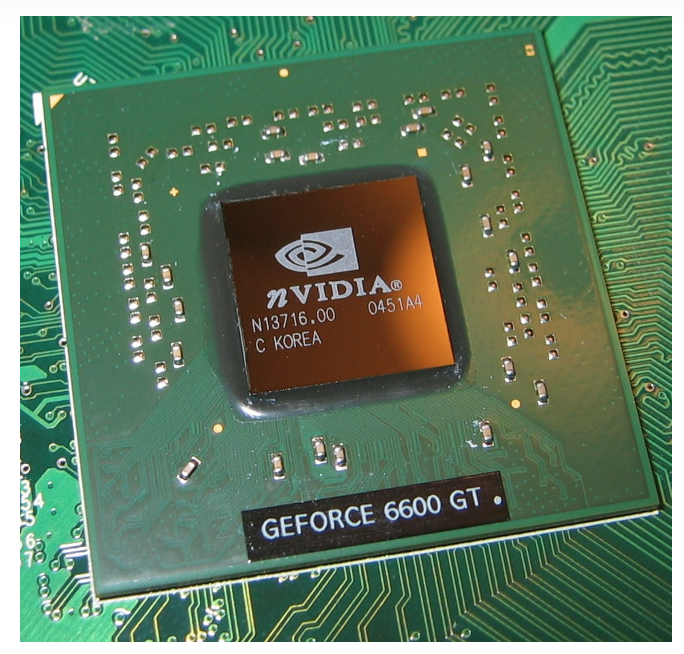
An NVIDIA GPU.
Cloud Service Provider
If you do not already have a computer with a built-in NVIDIA GPU, we suggest you use a cloud service provider. As a student, you have the option to claim either Amazon Web Services (AWS) credits or Google Compute Engine (GCE) credits. In the next few sections, we’ll go over the step you need to take to get a neural network running on the cloud using both AWS and GCE. You can choose whichever service you prefer; you can read about the capabilities of Google Cloud Platform and Amazon Elastic Compute Cloud at the provided links. The credits for each service are separate, so you can try out both!
We recommend starting with Google Cloud and moving to AWS should you need more time or find that you prefer it's interface.
Note: Please skip this section if you are planning to use your own GPU or CPU (or otherwise not planning to use a cloud platform).
Note: Please contact student support for Google Compute Engine credits.
Note: You may not use the services to engage in mining cryptocurrency.
Outline
In this lesson, we'll go through the typical steps to setup, use, and shutdown a GPU instance.
- Setting up an account to redeem cloud credits
- Defining and requesting a GPU instance
- Launching an Instance
- Logging into an Instance
- Shutting Down an Instance
This last step is important to ensure that you do not accrue additional charges.